Using an external scheduler
This guide provides an example of using the ‘OMAT background launcher’ application with a 3rd party scheduler such as the one built in to Outlook. The application ships with the Outlook Mac Archive Tool as utility for running the archive process in the background.
1) Edit the Outlook Schedules
Go to the following menu in Outlook: ‘Tools’ then select ‘Run Schedule’ then ‘Edit Schedules’
2) Create a new schedule
Hit the ‘+’ to create a new schedule
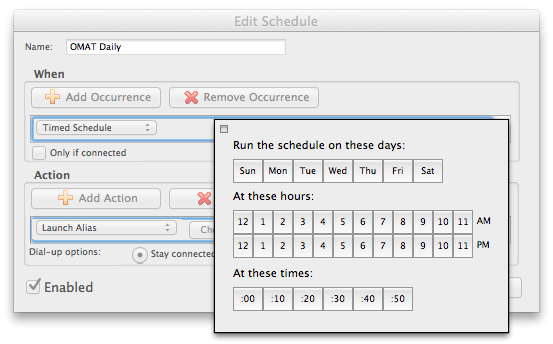
3) Configure schedule:
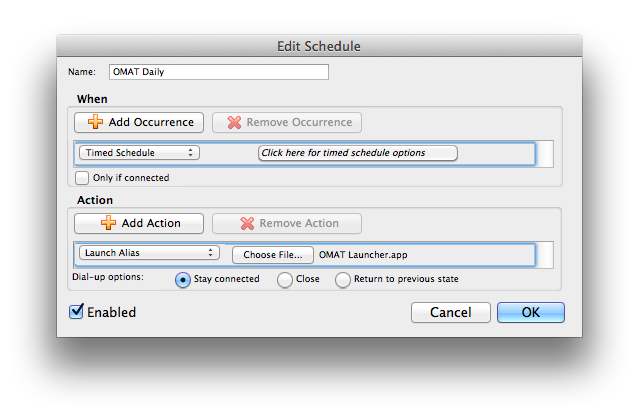
4) Select the ‘OMAT Background Launcher.app’
Don’t select the Outlook Mac Archive Tool.app. Rather use the the ‘OMAT Background Launcher.app’. Upon each activation by the scheduler, it will run an archive process once in the background (per your current configuration) before shutting down.
5) Test
Hit OK and then you can test the configured schedule manually by selecting it from the ‘Tools–>Run Schedule’ menu
 7thDomain Software